Design and print
Content
Elements are placed one after another along the label. Order them with Move up and Move down.
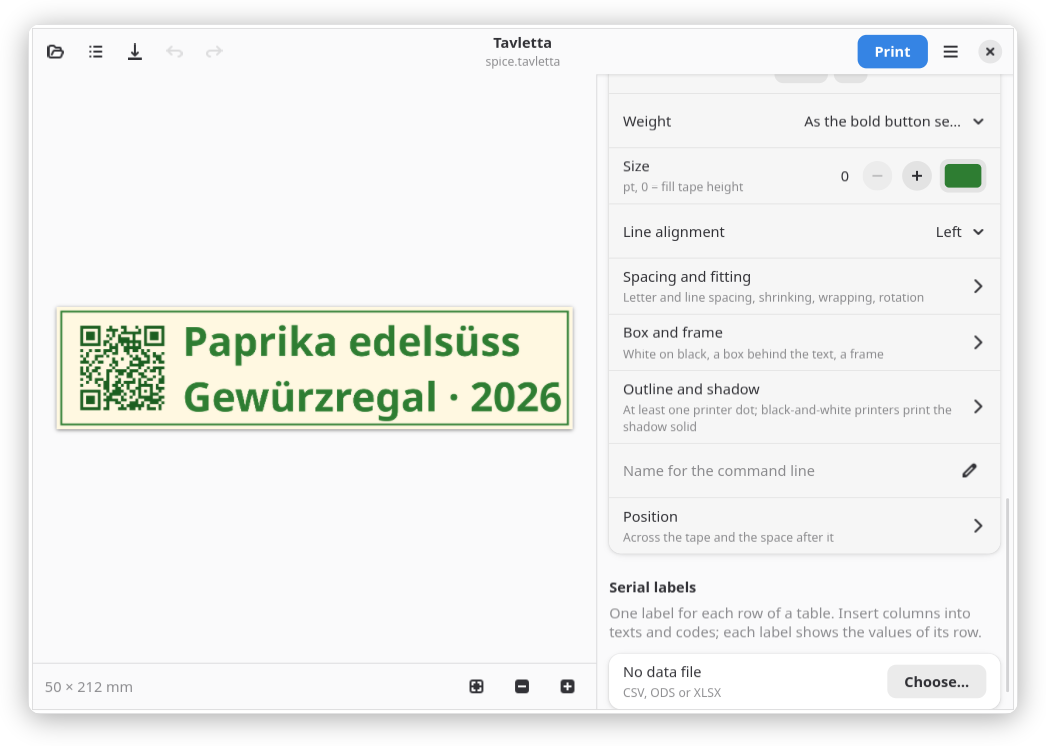
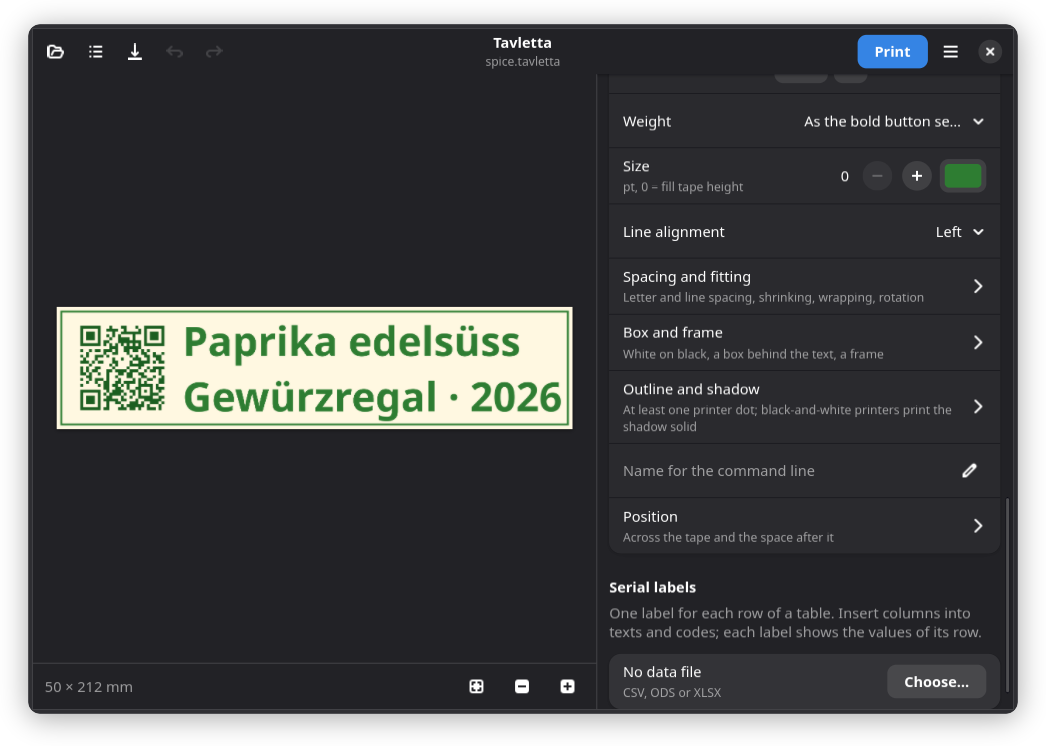
- Text: any installed font, colour, several lines. Size 0 fills the label height, otherwise fixed in pt.
- Image: photos and graphics; drag and drop works too.
- Symbol: a pictogram from the symbol library, see below.
- Code: Type offers 2D codes (QR code, Data Matrix, PDF417, Aztec), linear barcodes (Code 128, Code 39, Code 93, EAN-13, EAN-8, UPC-A, UPC-E, ITF-14) and GS1 codes (GS1-128, GS1 DataMatrix). Below the type it says what the type is for and what it accepts.
- EAN, UPC and ITF-14: enter the digits without the check digit, it is added; with it, it is checked.
- GS1-128 and GS1 DataMatrix: application identifiers in brackets, each
followed by its value, e.g.
(01)09501101530003(17)261231(10)AB12. Tavletta checks identifiers, lengths, dates and check digits and says which identifier is wrong. GS1-128 shows the identifiers in brackets below the bars. - A GS1 value with round brackets in it: write the identifiers in square
brackets, e.g.
[01]09501101530003[21]A(B)C. - ITF-14 and GS1-128 on shipping cartons: GS1 asks for modules of at least 0.495 mm. On narrow labels they come out narrower: fine for your own scanners, too small for carton labels read in logistics.
- Code 39: a
$,/,+or%before a capital letter is read as another character by scanners set to Full ASCII; Tavletta warns. - Content a code type cannot take is not changed silently: the element is crossed out and a warning says why.
- Labels with a code type other than QR code, Code 128 and EAN-13 do not open in earlier versions of Tavletta: they say the label needs a newer version.
- Codes print sharp on every printer: each bar and square is a whole number of printer dots, as close to the designed width as the element's space allows, with the blank margin a scanner needs. The code may come out slightly smaller than designed, centred in its space.
- A code whose bars are only one printer dot wide, or without room for its blank margin, may not scan: Tavletta warns before printing, make the code larger. A code that does not fit at all is not printed.
- QR codes with characters beyond plain ASCII (umlauts, °, £ …) are now marked as UTF-8, so scanners read them correctly. Labels made with earlier versions print such a QR code with a different pattern, some with more and smaller modules.
- Labels made with earlier versions: QR codes come out a quarter to a third narrower, about half the area (44 to 56 % less), as their blank margin is now inside the element. On narrow tape, where each module is a whole number of printer dots, up to 60 % narrower. Barcodes come out slightly wider.
Text style
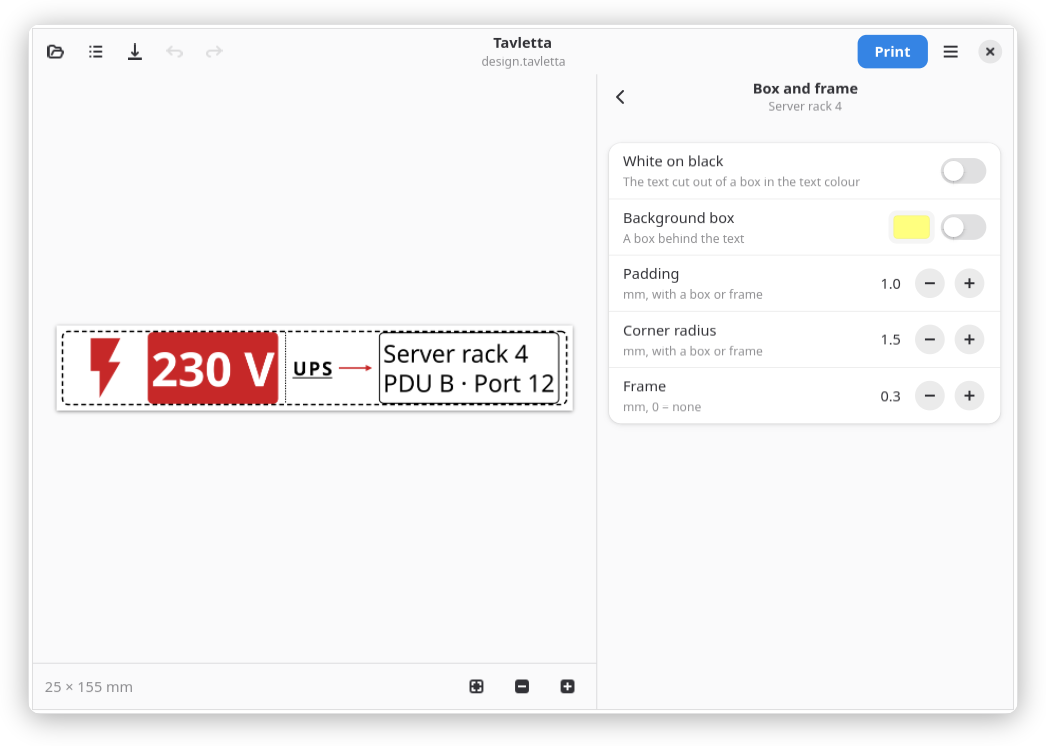
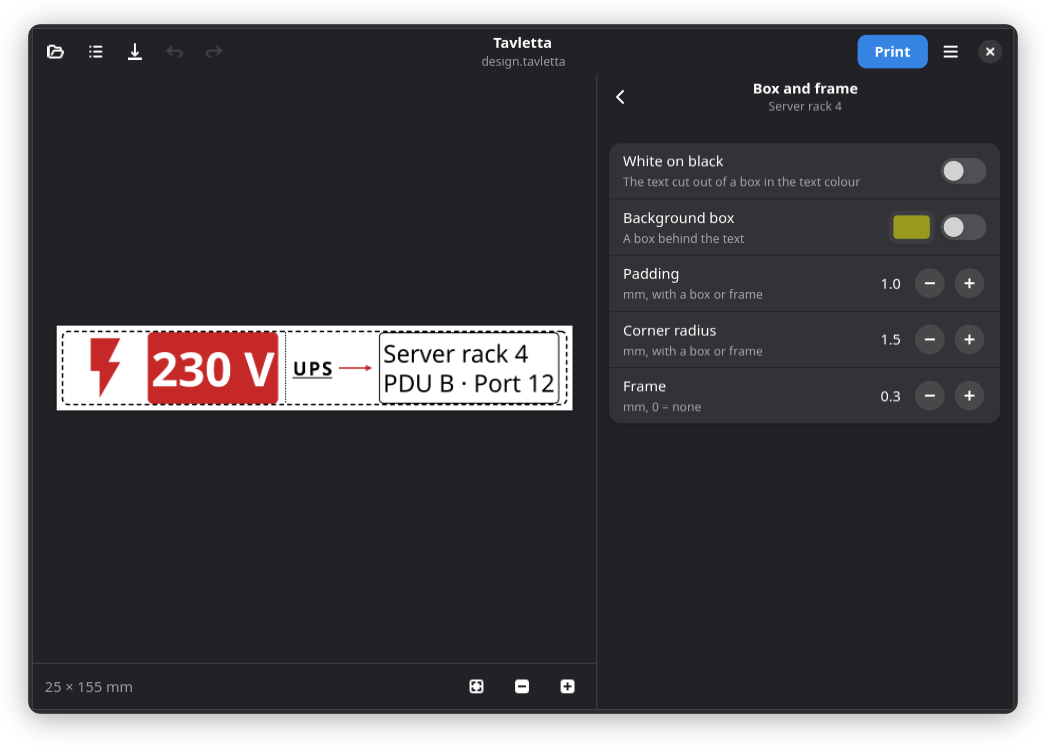
The rows of a text element; Spacing and fitting, Box and frame and Outline and shadow open a page of their own in the sidebar, its header names the element:
- Font: family, Bold, Italic, Underline, Strikethrough.
- Spacing and fitting: Letter spacing and Line spacing; Shrink to fit makes the text smaller until it fits the label height and, with a fixed length, the length, never below Smallest size; Wrap width breaks long lines into several; Rotation 90° or 270° turns the whole text, the letters lie on their side (not upright columns of Chinese or Japanese).
- Letter spacing leaves out scripts whose letters join, such as Arabic or Devanagari.
- Box and frame: White on black cuts the text out of a box in the text colour; Background box puts a box of another colour behind it; Padding, Corner radius and Frame shape the box.
- Outline and shadow: a line around each letter, a shadow down and to the right.
Images
- Crop…: drag on the image or type the area in percent.
- Adjust: Brightness, Contrast, Gamma, Invert, Rotation, Mirror, Flip.
- Corners and border: rounded corners and a border around the image.
- Black and white: how black-and-white printers print the image, see below.
Lines and shapes
Line or shape in the add menu:
- Line: horizontal, vertical or diagonal, with Arrows.
- Rectangle (rounded with Corner radius) and Ellipse, with a Fill: solid, hatched, dotted or a grid.
- Separator: a line across the whole label height between two elements.
- Line width and Line style (solid, dashed, dotted). Every line is at least one printer dot wide.
- Labels with lines or shapes, or with the options on this page, do not open in earlier versions of Tavletta: they say the label needs a newer version. Labels without them open as before.
Position
Each element has Position:
- Vertical alignment: at the top, in the middle or at the bottom of the label height.
- Own spacing: Space after it instead of the label's Spacing.
Free layout
Layout at the top of Content places the elements One after another along the tape, or Free: each one where you put it.
- In the free layout every element has Position and size: X and Y from the label's top left corner, to a hundredth of a millimetre.
- A text is placed by the top left corner of its letters' ink, a code by its first module. The numbers of other label designers can be taken over as they are.
- A text's Size is the height of its font (the em) in mm, as label designers give it.
- A code's Module size is rounded to whole printer dots: 0.67 mm at 12 dots per mm prints as 8 dots. Leave room for the quiet zone around the code. Codes can be turned (Rotation), a barcode has its Bar height.
- An image has its Height, a symbol its Size, a line or shape its width and height. A shipping label fills the label from its position to the right and bottom edge.
- Switching to the free layout for the first time keeps every element where it was.
- An element that reaches beyond the label is cut off there; the preview warns about it.
- Labels in the free layout do not open in earlier versions of Tavletta.
Weight and error correction
- Weight chooses one of the font's own weights, such as Light or Semibold, instead of regular or bold. The bold button sets it back.
- QR codes have Error correction: how much of the code may be damaged and still be read. Standard (medium) keeps the code of earlier versions; the other levels choose the code's pattern as label printers do.
- Labels with a weight or an error correction do not open in earlier versions of Tavletta.
Black-and-white printers
- Text, codes, symbols, lines and borders print with sharp edges: text is drawn without smoothed edges, every part is converted on its own.
- Images: Method under Black and white. Automatic keeps drawings and logos in one or two tones sharp, prints drawings in several flat tones as even patterns and dithers photos; Threshold sets which grey still prints black.
- Colour emoji in a text get a line around their shapes, so light parts stay visible.
- Colours print black, or white if they are lighter than what lies behind them (the background colour or image, or a text's box); an element over a light and a dark part takes the colour that shows on most of it.
- A warning says when an element would hardly stand out from what lies behind it; codes need more contrast than text, so that they scan.
- The background colour or image is dithered on its own.
- A shadow prints solid in the other colour, one dot apart from the letters. Outlines and shadows are at least one printer dot.
- Earlier versions dithered every image; now Automatic keeps drawings and logos sharp.
Undo and keyboard shortcuts
- Undo (Ctrl+Z) and Redo (Ctrl+Shift+Z); typing into a field counts as one step, also when the field has the focus. Undoing back to the saved label makes it unchanged again.
- The open element (its row expanded): Ctrl+D duplicates it, Delete removes it, Alt+Up and Alt+Down move it.
- Ctrl+Shift+T, G, Y, B and L add text, an image, a symbol, a code or a line.
- Keyboard shortcuts (Ctrl+?) in the main menu lists them all.
Symbols
Symbol… opens the symbol library: over 7000 pictograms such as arrows, warnings, recycling, tools, food or weather, from Material Design Icons. Search by name, for example "arrow" or "recycle". The names and categories come from the icon set and are English, so the search is in English too. The list next to the search shows one category; Recently used shows the symbols chosen last. The "Brand / Logo" category and further icons showing brands or trademarks are left out.
- Size 0 fills the label height, otherwise the symbol has this height.
- Rotation: a quarter turn at a time, clockwise.
- The colour is printed on colour and office printers. Black-and-white label printers print symbols in black, or in white if the colour is light, with sharp edges.
The label file keeps the outline of each symbol, so a label looks the same in later versions. Older versions of Tavletta cannot open labels with symbols and say that the label needs a newer version.
Texts and codes can contain variables, e.g. a date or a running number.
Label
Endless tape:
- Automatic length: the label is as long as its content. Off: fixed Length, content aligned and scaled down if needed.
For every label:
- Spacing: space at the ends and between elements.
- Edge spacing: extra space along the label edges.
- Background colour, Background image: printed edge to edge.
- Border: width, 0 = none; always inside the safety margin. Border style: Corner radius, Line style (also double) and Inset.
- Units: millimetres or inches, by default from the system language.
Die-cut labels have a fixed size instead of a length:
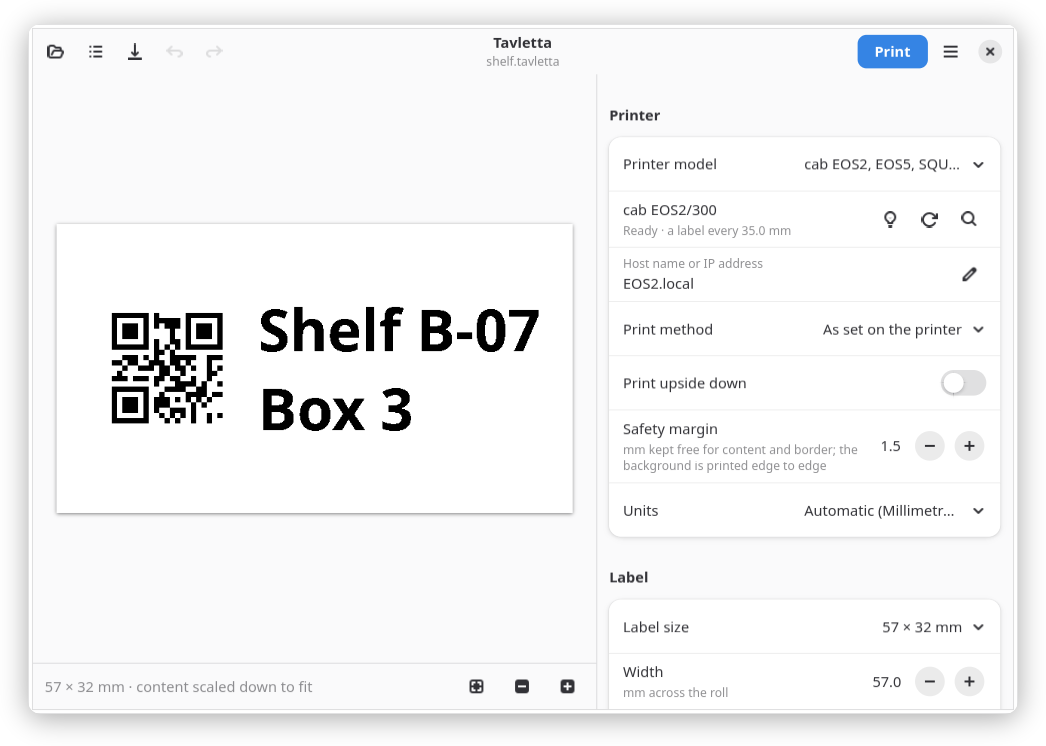
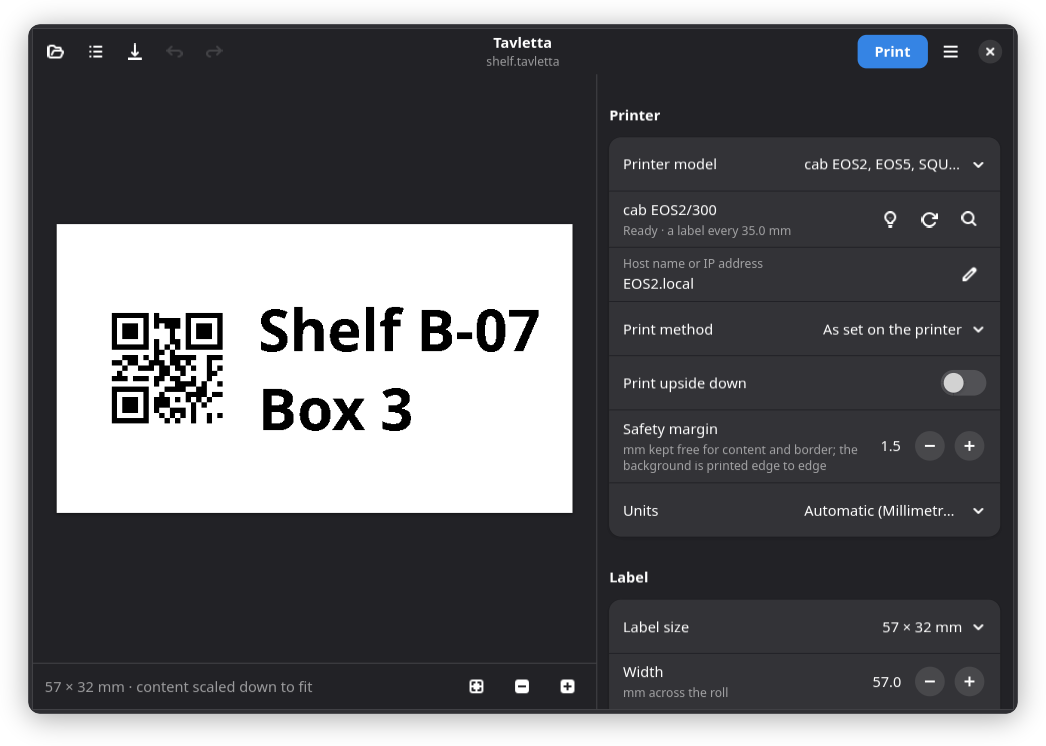
- Label size: a common size, or Custom size with Width (across the roll) and Height (along the roll), as on the label box.
- Gap: space between two labels on the roll, usually 2 to 3 mm. Before printing Tavletta compares height and gap with the distance the printer measured.
- Content direction: Across the roll for labels read with the roll running from top to bottom, Along the roll like on tape.
- Alignment: where the content sits if it is shorter than the label.
Safety margin (printer setting, default 1.5 mm): content and border keep this distance from the label edges. Printers lose a little at the edges, and long labels can run slightly askew. If text is cut off at the edge, increase it.
Shipping labels
Carriers and marketplaces send shipping labels as a PDF or an image, often an A4 page with the label in one half or quarter and a receipt or instructions next to it. Shipping label… in the main menu (or a PDF dropped onto the window) opens such a file and makes a new label of it.
- Tavletta looks for the label on the page: a large area with the shape of a label, best with a printed frame and a barcode; a page with one label filling it is taken whole. Check the selection: drag it, drag its edges, or draw a new one. Next suggestion shows other areas that could be the label, Whole page selects all of it.
- Page: the page of a PDF with several pages.
- Label size: 4 × 6 in (101.6 × 152.4 mm), 100 × 150 mm, 100 × 200 mm, a 62 mm roll that is as long as the label needs, or A6 and A4 paper on the system printer. Only sizes the printer can print are offered; on endless tape the label runs along the tape.
- A label printed sideways on the page is turned upright for the size; Rotate left and Rotate right turn it by hand.
- Scale: Whole area, centred keeps all of the area, Fill the label, edges cut off fills the label completely.
- Create label replaces the open label. The area stays an element of the label: Area in its row opens the selection again.
A PDF page is drawn right at the resolution it is printed at, without smoothing: bars and text come out as whole dots, so barcodes stay readable. Lines thinner than a dot are printed at least one dot wide (sometimes two), and in black even if they are light grey or coloured; white lines thinner than a dot on black may vanish. Label printers get the label at their own resolution. The system printer gets it without loss: as PWG Raster drawn at the printer's resolution, or as a PDF drawn at 300 dpi, which a printer of another resolution scales itself (on a 203 dpi printer the edges of bars may then soften: check that the barcode scans). Only printers that take nothing but JPEG get a compressed copy.
Images are enlarged by repeating pixels, evenly only by whole multiples (otherwise some pixels come out one dot wider than others); reduced, the pixels that fall together are averaged into grey.
On black-and-white printers the area is looked at piece by piece. Where it is black and white but for grey edges (barcodes and text, also from a scan with grey ink on grey paper), it is cut at the middle between its own black and white, so bars keep clean edges; images are enlarged smoothly for this, so the edges fall between the pixels of the scan. Where it has grey of its own (a grey logo, grey text down to light grey, a shaded band), the grey is printed as a dot pattern; black text on it gets a narrow edge of paper so that it stays readable. A scan or photo of a label should have at least 150 dpi; at 100 dpi only a clean one keeps all its bars.
The label file keeps the whole page the area was taken from, also outside the area (addresses, tracking numbers). Of a PDF with several pages only the chosen page is kept if it can be copied unchanged, otherwise the whole document (the dialog then says so). Unchanged is strict: a copy that differs by more than rounding anywhere, even by a few dots, is not used; pages with embedded fonts that are drawn slightly differently when copied (TeX, for example) keep the whole document. Of a TIFF with several pages only the chosen page is kept.
Opening PDF files needs Poppler (poppler-glib); the Flatpak brings it along, otherwise install it from your distribution (see the README). Older versions of Tavletta refuse to open labels with a shipping label and say that the label needs a newer version.
Most shipping label rolls are direct thermal labels: they need no ribbon, but the print fades in heat and sunlight within months. That is fine for a parcel on its way; for labels that must last, use thermal transfer labels with a ribbon.
Print
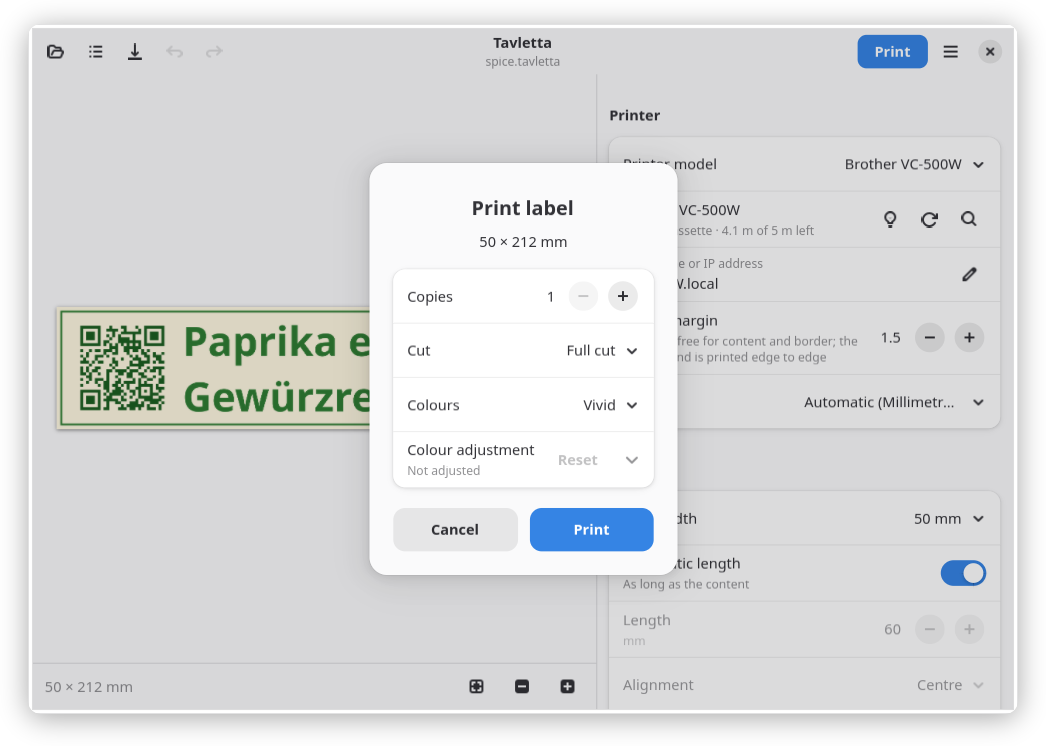
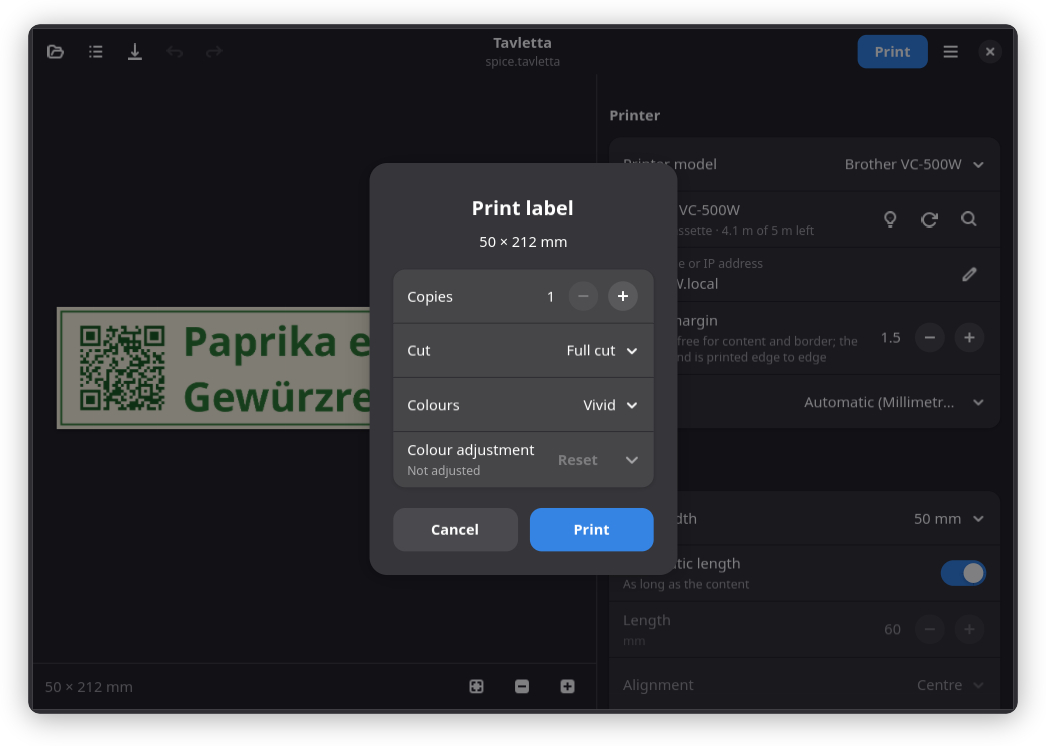
- Copies: number of labels.
The print dialog only shows what the printer can do; the options of each printer are listed under Printers. Printers without such options print with the settings made on the printer itself.
Export PNG… saves the label as image.
Variables
Variables are filled in when printing, in texts and in the content of codes. Insert variable next to the text or the content offers the common ones; type the others.
| Variable | Result |
|---|---|
{=date} |
today, as the system language writes dates |
{=date:%d.%m.%Y} |
today in a format of your own, e.g. 31.12.2026 |
{=date+30d} |
in 30 days, e.g. "best before"; also w (weeks), m (months), y (years), h (hours), combined like {=date+1m-1d} |
{=time}, {=time:%H:%M} |
the time |
{=counter} |
a running number |
{=counter:0001} |
with leading zeros, as many digits as the pattern |
{=copy}, {=copies} |
number of this copy and of all copies |
{=id}, {=id:12} |
a short random ID, 8 characters by default |
{=uuid} |
a random UUID |
Formats use the letters of
strftime:
%d day, %m month, %Y year, %H:%M hours and minutes, %B the name
of the month.
The counter goes up with every printed label, also from copy to copy: 5 copies get 5 numbers. Set the Next number and the Step in the Counter group below the content; it appears once a text uses the counter. After printing the label remembers the next number: save it to keep it.
On one label every variable has one value: a counter or an ID used in the text and in the QR code is the same number. The preview shows the values the next print uses.
To print a brace, double it: {{=date}} prints {=date}. Texts without
variables print exactly as typed, unless the label has a data file for
serial labels: then {{ and }} always print one brace.
Dates and times are in the computer's time zone. +1d keeps the time of
day, also when summer time starts or ends; +2h counts real hours. %z
and %Z give the offset and the name of the time zone.
A label with variables or a counter needs this version of Tavletta or a
newer one: older versions refuse to open it instead of printing {=date}
as it is.
Command line
tavletta print prints a saved label without opening a window, also on a
computer without a screen:
tavletta print label.tavletta
tavletta print label.tavletta --copies 5 --counter-start 100
tavletta print label.tavletta --set title="Batch 7" --set lot=A12
tavletta print label.tavletta --printer system --host ipp://printer.local/ipp/print
tavletta print label.tavletta --copies 3 --dry-run --output preview.png
tavletta print shelf.tavletta --data items.csv --rows 3-10
tavletta list-printers
tavletta --version
- Without
--hostTavletta uses the printer set in the app, or the only one it finds on the network.tavletta list-printersshows model, address and name of each printer found. --set NAME=VALUEreplaces the text of the element with that Name for the command line (in the element's settings), or fills in a variable of your own:{=lot}in the label,--set lot=A12when printing; a name may use letters of any language. Variables in a new text are filled in;--set-literal NAME=VALUEtakes the value as it is.--set date=2026-12-31prints with another date.- With a counter the next number is saved in the label file after
printing, also when the printer fails half-way or the print is stopped
with Ctrl+C. If the file cannot be written, nothing is printed;
--no-save-counterprints anyway and saves nothing, so the next print repeats the numbers. The label file is locked while printing: a secondtavletta printof the same file waits. The window reads the saved number again before printing and saving. - It prints with the choices last made in the app for that printer
model: cut, colours, quality, chain printing, high resolution, tape feed,
the printer settings and Print outlines on a label sheet.
--printer-defaultstakes the model's defaults for these instead (no outlines); the printer's address and the Safety margin stay as set in the app. --print-method printer|transfer|directsets the Print method of a thermal printer that has it for this print (as set on the printer, with a ribbon, thermal direct), also with--printer-defaults.- A roll whose label distance, as the printer measured it, is not the label's height plus Gap gets a hint, as in the window; the label is printed anyway.
- Some printers are asked before the label is drawn, because it depends
on what they report (the tape, the resolution); a printer that does not
answer within 5 s (2 s for
--dry-run) gets the label drawn without. A question still on its way then gets up to 10 s more to end before the label is sent (Tavletta says so); an answer in that time is used.--no-queryskips the question. - Serial labels: one label for each row of the data file,
--copiesof each;--datagives the data file (by default the label's own, if it lies in the label's folder),--sheetthe sheet,--rowsthe rows (3-10,5,7-to the last). The counter goes on from row to row. A placeholder without a column or a code a row cannot make stops the print before the first label. See Serial labels. --dry-runonly checks and renders: it lists the texts of each label;--output file.pngsaves each label as Export PNG… does: as printed, on the whole tape, at most 600 dpi like the preview (a large page coarser), with its resolution (file-1.png,file-2.png… if they differ;-writes the first to standard output). The first label is also drawn as the printer would get it. With--outputevery label is drawn, and a code that does not fit stops the dry run (exit code 4); without it the labels after the first are not drawn: their columns and codes are checked, not whether a code fits.
Exit codes: 0 printed, 1 printer problem or no printer found, 2 wrong arguments, 3 label file cannot be read, still locked by another print or output not written, 4 the label cannot be printed (empty, unknown or unclosed variable, date before the year 1 or after 9999, unknown column, a code a row cannot make), 5 the counter cannot be saved (nothing printed; or printed, but saving failed), 130 interrupted.
In the Flatpak the label file has to be handed over with
--file-forwarding, a data file too (each between @@; the label's own
data file is only reached when handed over); write images to standard
output:
flatpak run --file-forwarding xyz.joshuahirsig.Tavletta print @@ label.tavletta @@
flatpak run --file-forwarding xyz.joshuahirsig.Tavletta print @@ label.tavletta @@ --data @@ rows.csv @@
flatpak run --file-forwarding xyz.joshuahirsig.Tavletta print --dry-run --output - @@ label.tavletta @@ > preview.png
A file handed over this way is reached through the document portal. The next counter value is written there like any save, but the portal may not support locking the file: two prints of the same file at the same moment are then not kept apart. If the portal refuses to write, nothing is printed (exit code 5).
Writing the counter back through the document portal has not been tried
yet. After the first print from the Flatpak, open the label and check
that Next number went on; if not, give the start with
--counter-start on every print.