Serial labels
One label for each row of a table: inventory numbers, shelf labels, name
badges, addresses. The label holds placeholders such as {Name}; each
printed label shows the values of its row.
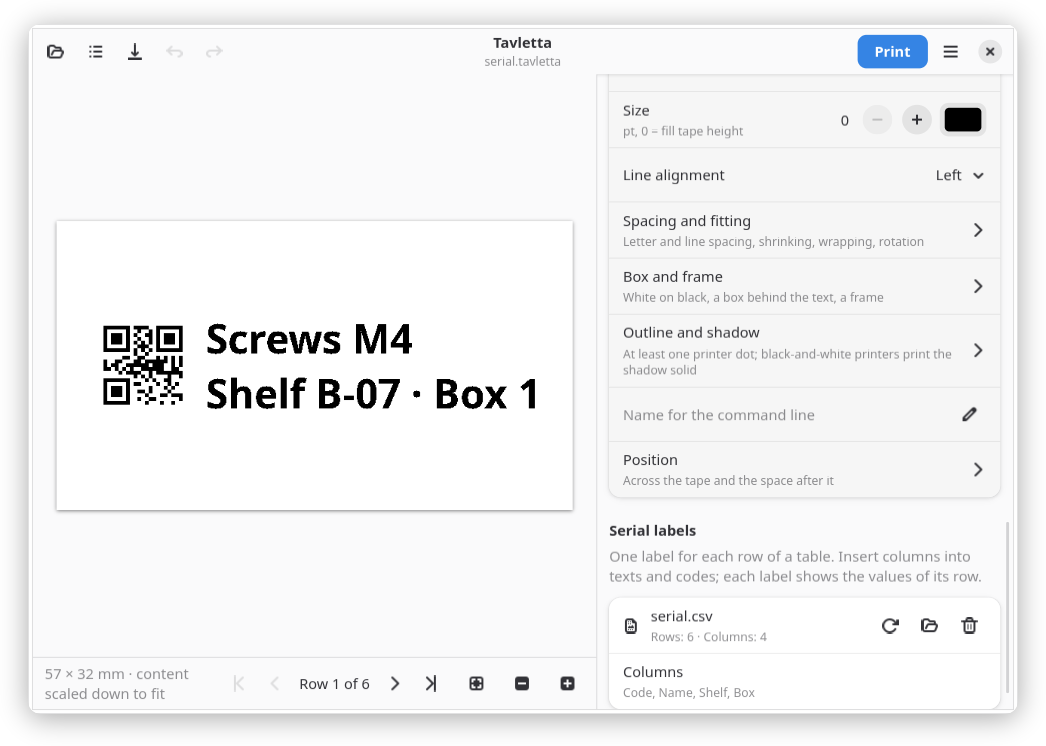
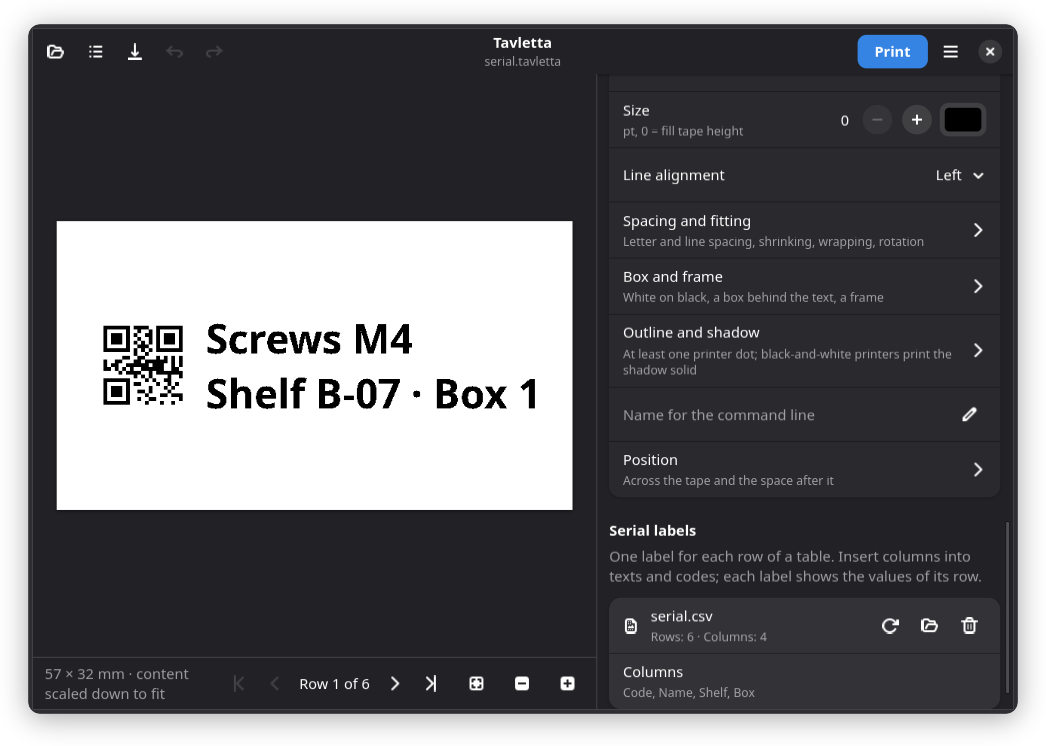
Data file
- Data for serial labels… in the main menu, Choose… under Serial labels, or drop the file onto the window.
- CSV (comma, semicolon or tab), ODS (LibreOffice) or XLSX (Excel). The first filled row holds the column names.
- A title above the column names counts as the first row: delete it, or put the table on a sheet of its own.
- ODS: cells as LibreOffice shows them, dates as
2026-11-11. - XLSX: numbers with their decimals, leading zeros and percent signs,
dates as
2026-11-11. Thousands separators and text in the number format, such as a currency, are left out. Dates in the East Asian built-in formats come out as numbers. - Empty rows are left out. The hidden cells of merged cells are empty.
- Several sheets: choose one under Sheet. If the sheet saved with the label is no longer there, nothing is printed until another one is chosen.
- Read again after the file was changed in the spreadsheet program.
- Up to 100 000 rows, 1000 columns, 2 000 000 cells (rows times columns, without the row of column names) and 50 MB.
The label file stores where the data file is, never its content. If the data file lies in the same folder as the label (or below it), both can be moved or shared together. If it is missing when the label is opened, Tavletta says so: choose it again or remove it.
A data file is read without asking only if it is a table (.csv, .tsv,
.txt, .ods, .xlsx) in the label's folder or below, and not in a
hidden folder. Any other data file is read only after asking, once for
each label file: a label from someone else could name any file.
Forget allowed data files in the main menu makes Tavletta ask again.
In the Flatpak, Tavletta sees only the files it is given: a label opened from the file manager or the file chooser, but not the folder around it. A data file beside the label is then not found: choose it with Data for serial labels… (the file chooser gives Tavletta access to it).
Templates keep the placeholders but not the data file. Older versions of Tavletta refuse labels with a data file instead of printing the placeholders.
Placeholders
- Insert column next to a text or the content of a code adds
{Column}at the cursor; typing it works as well. - Placeholders work in texts and in QR codes and barcodes, for example
https://example.org/item/{Number}. - With a data file
{{and}}print a single brace, in every text and code:{{Name}}prints{Name}. Other braces need doubling too, for example JSON in a QR code:{{"id":{Number}}}. Without a data file texts print as typed. - Values are printed as they are, even if they contain braces.
- A placeholder without a column of that name is printed as it is; the line under the preview names it.
-
Before printing, the codes of every row are checked: an EAN-13 needs 12 or 13 digits, an empty cell gives no code. Rows that fail are named; print without them or correct the data file.
-
Variables such as
{=counter}or{=date}work together with the placeholders; the counter goes on from row to row.
Preview
- The buttons under the preview step through the rows: First row, Previous row, Next row and Last row, or Alt+Page Up, Alt+Page Down, Alt+Home and Alt+End.
- Rows are counted without the row of column names.
- Export PNG… saves the row that is shown.
Print
- Print prints one label for each row. From row and To row limit the rows (all of them by default), Copies of each label sets how many of each are printed.
- Every label is a print job of its own, so this works on every printer.
- Stop in the bar above the window ends the series after the label being printed; the first label is always printed.
- If the printer reports a problem, printing stops at that row; the message says how many copies of it were already printed. Solve the problem, then print again starting from that row.
- On a label sheet each position gets one label: the rows in order, the copies of a row on the positions after each other, starting at the positions chosen for the first sheet. All sheets are one print job, so Stop is not offered. After a problem the message also says at which position of which sheet the row to go on from belongs.
Command line
tavletta print shelf.tavletta --data items.csv --rows 3-10 prints rows 3
to 10 without opening a window; see Command line.
With --dry-run each line of the listing starts with the row number.